
Project Items
Dimensions
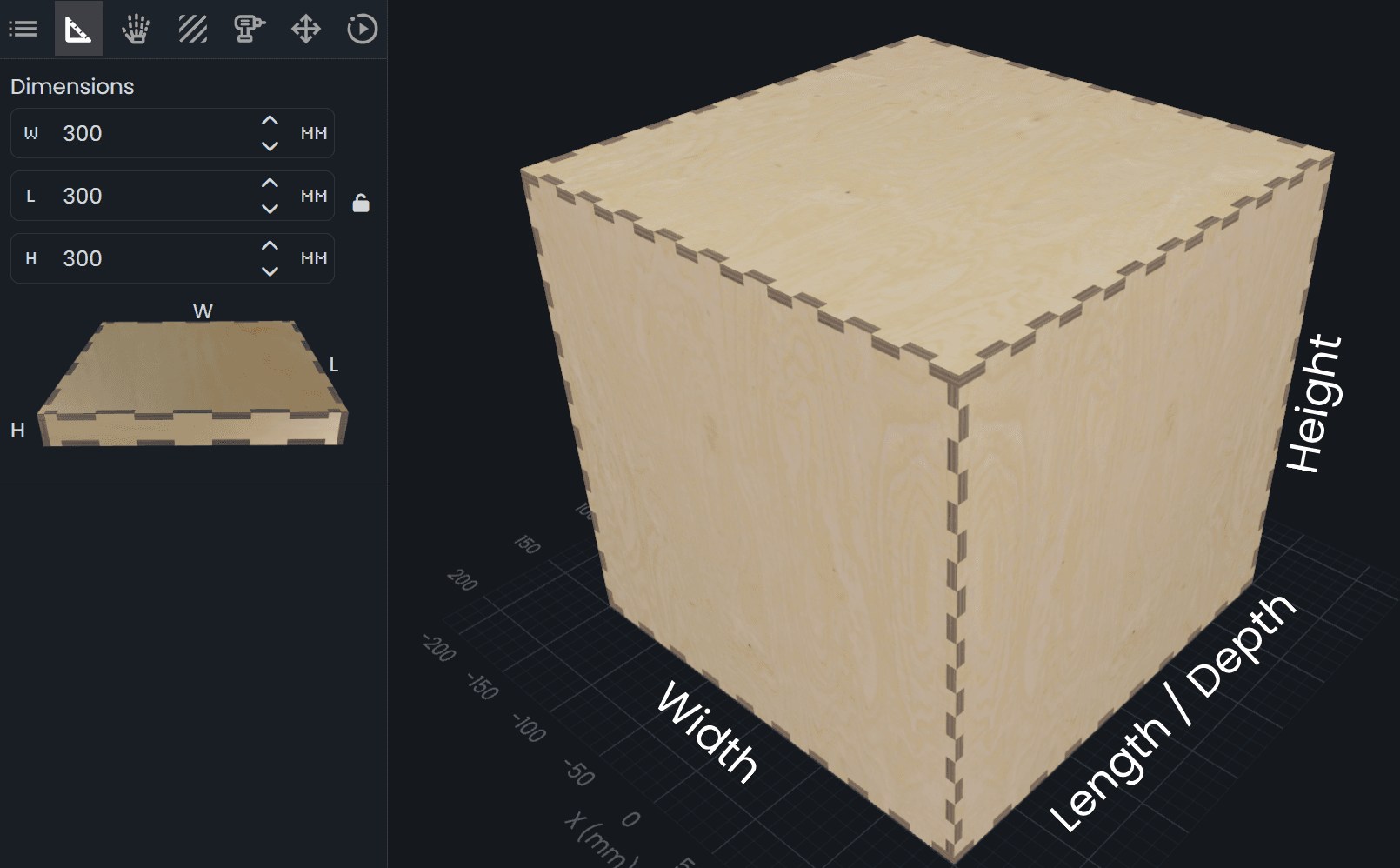
Every project item starts with three basic dimensions:
- Width: left to right
- Length: front to back
- Height: bottom to top
The small cube diagram next to the fields is a quick reminder of which dimension maps to which direction, so you don’t have to guess while you’re editing.
Scale (Proportional Lock)
Next to the dimensions you’ll see a lock icon. When the lock is enabled, changing one dimension will update the other two proportionally—basically scaling the item up or down while keeping the same shape.
This is useful when you like the overall proportions of an item and just want a bigger or smaller version without redoing the design.
Note: If you've set any of your parts to "Absolute Position" you may consider using the "All parts to relative" option in the Parts Menu before changin any dimension. Or not. Your choice.