

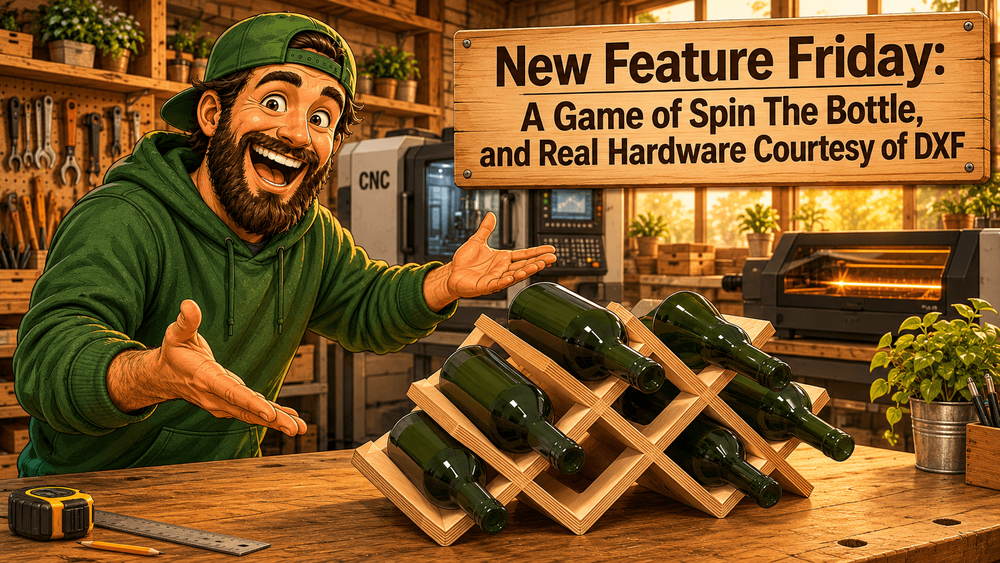
New Feature Friday: A Game of Spin The Bottle, and Real Hardware Courtesy of DXF
Posted: November 15, 2026 in #New Feature Fridays
Feature Friday, on Sunday. I design a lot in GCrafter so I can find the pain points. This week the pain point was a wine rack.
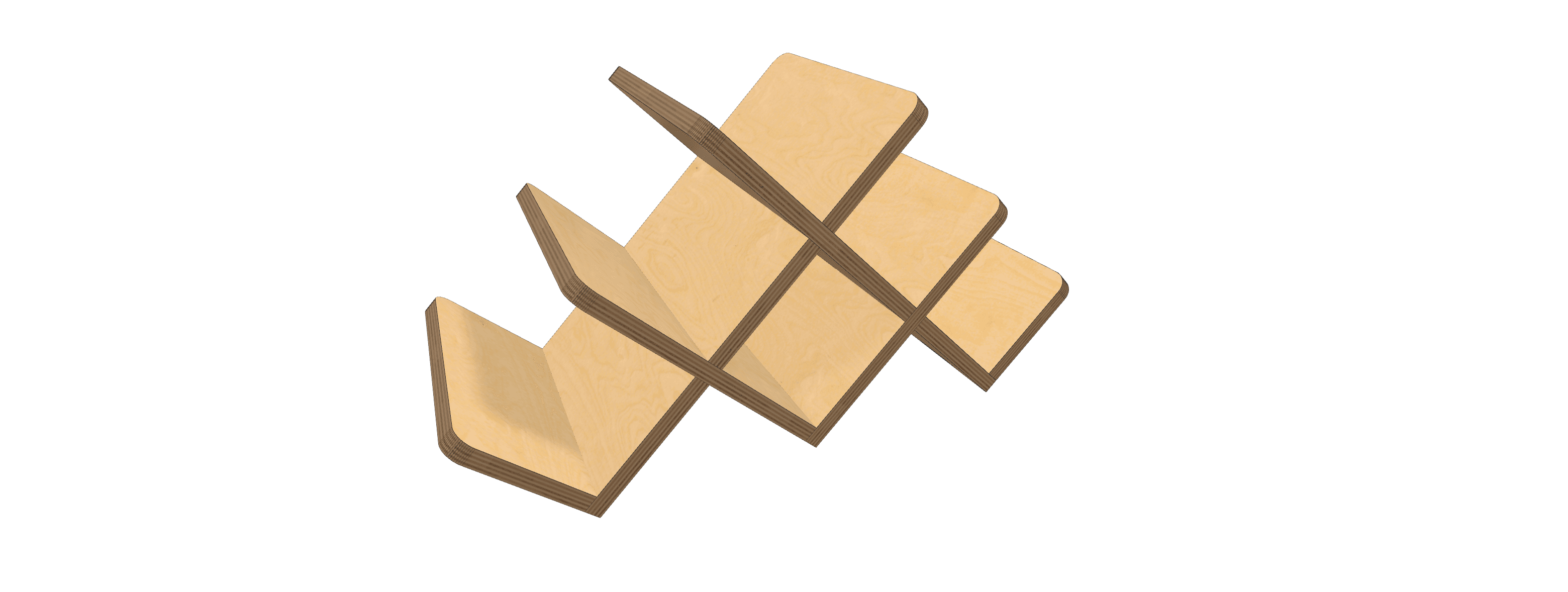
Revolve
I dropped that rack into Photolab and asked it to add some wine bottles. You would think that would be an easy ask. Which direction? What orientation? Labels? It ended in a less than stellar outcome.
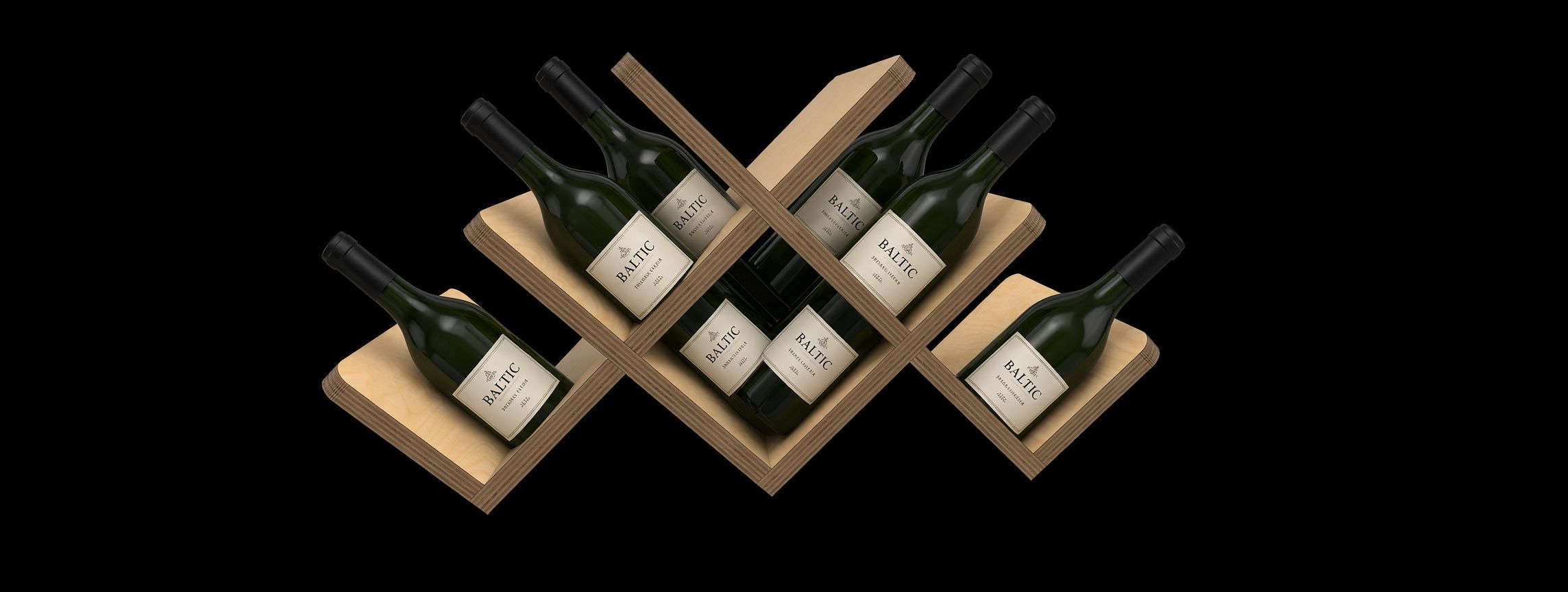
So I thought, what if we could create real 3D parts. Parts that might intersect. Parts that might just be for display. Parts so you can eyeball a real-world object against the thing you are designing. If I was going to get the AI to put things into the render, I was going to have to show it how.
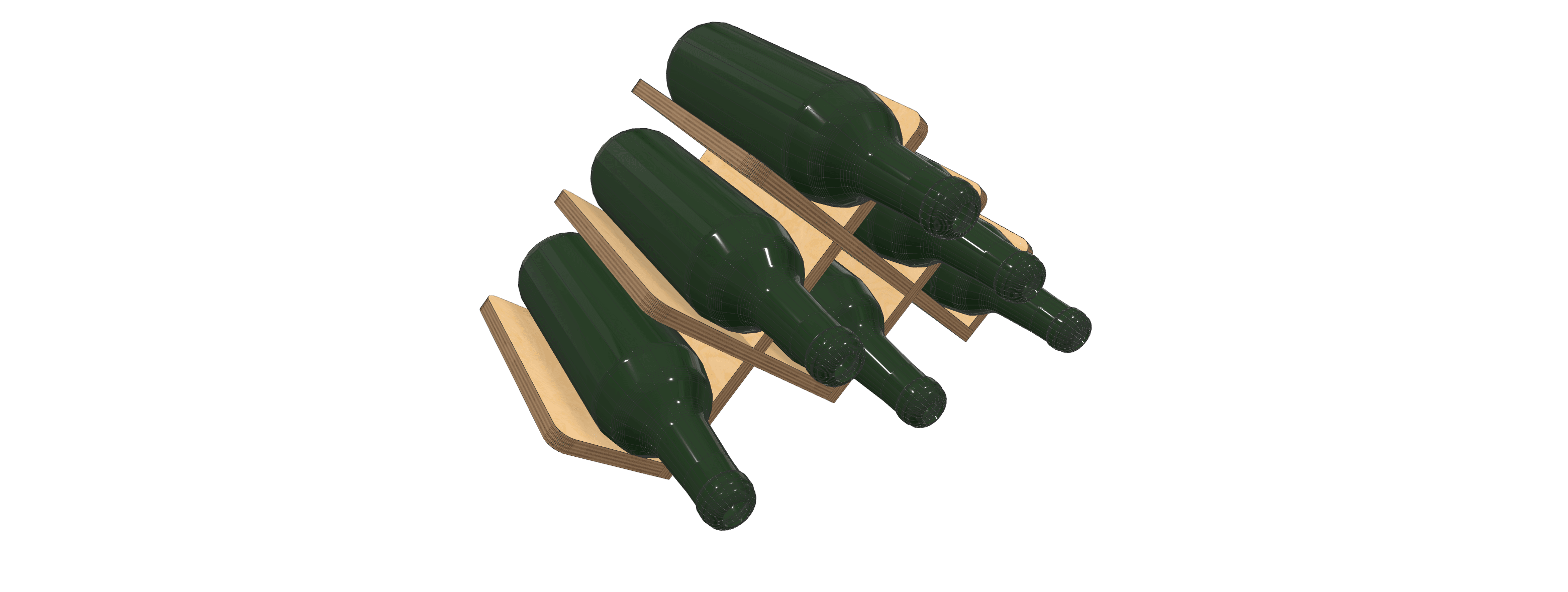

That is Revolve. Draw the cross-section in Part Lab. The 3D view spins it a full turn. A bottle. A knob. A round foot. A turned pull.
It sits on the part's dimensions, under Operation, next to Extrude. Pro and the demo.
Revolve isn't just for display
You can also set a revolved part to have an operation.
These parts are not going to be cut. They never land on a sheet. They can cut through. The opening is the real intersection of that spun solid with the panel, so you get a real opening cut by a real thing. A bottle-shaped hole, because a bottle was actually there.
Or leave the operation off, and the part is only there so you can look at it.
Plastic
Now that I had these wine bottles, I wanted them to look like wine bottles. Dark green glass. And while I was at it, they needed to be semi-transparent. I was looking to render something real for a product photo.
Plastic is a material. Dark green is in the stain list. Plastic has an opacity slider, from 10% to fully solid. Turn it down and the wireframe gets out of the way, so you can see the rack through the glass.
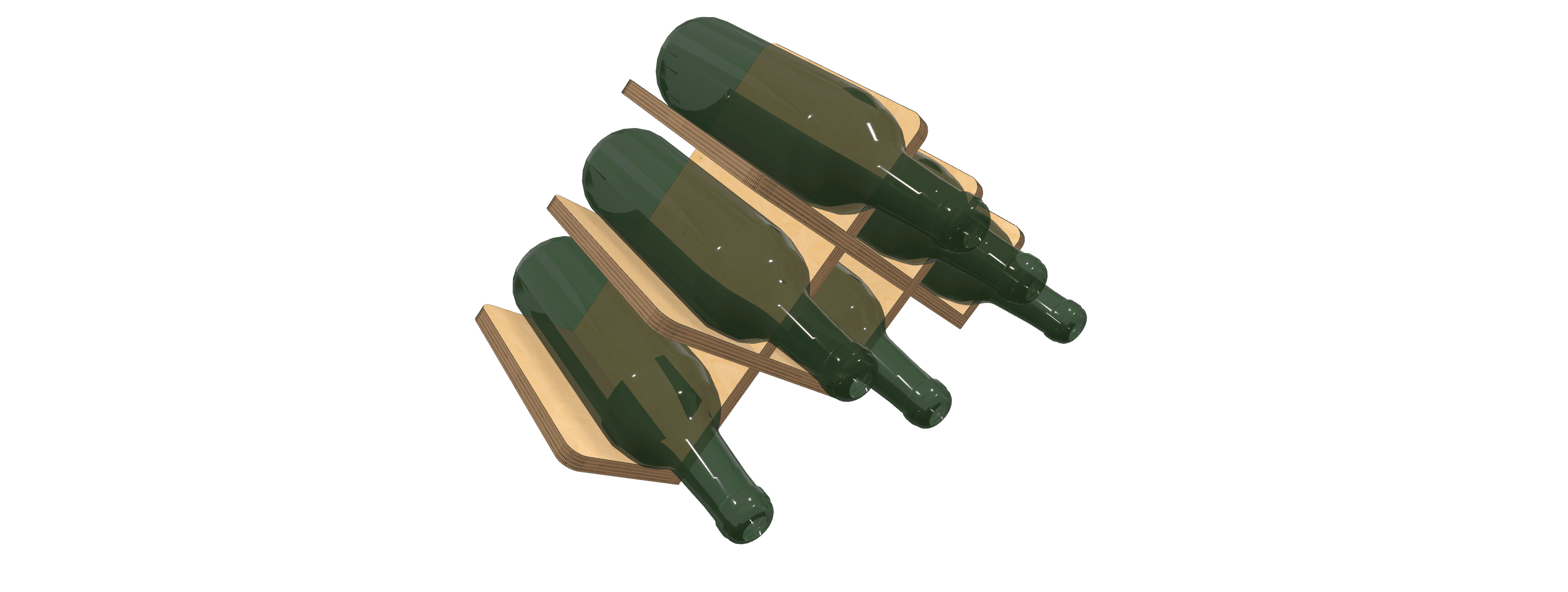
PhotoLab Render Using Revolve

DXF in Part Lab
I don't know if you have a McMaster-Carr account, but you should get one. They have a huge library of hardware. 3D models, and 2D drawings to match. For 2D, DXF is the download.
We could only import SVG. That is stupid.
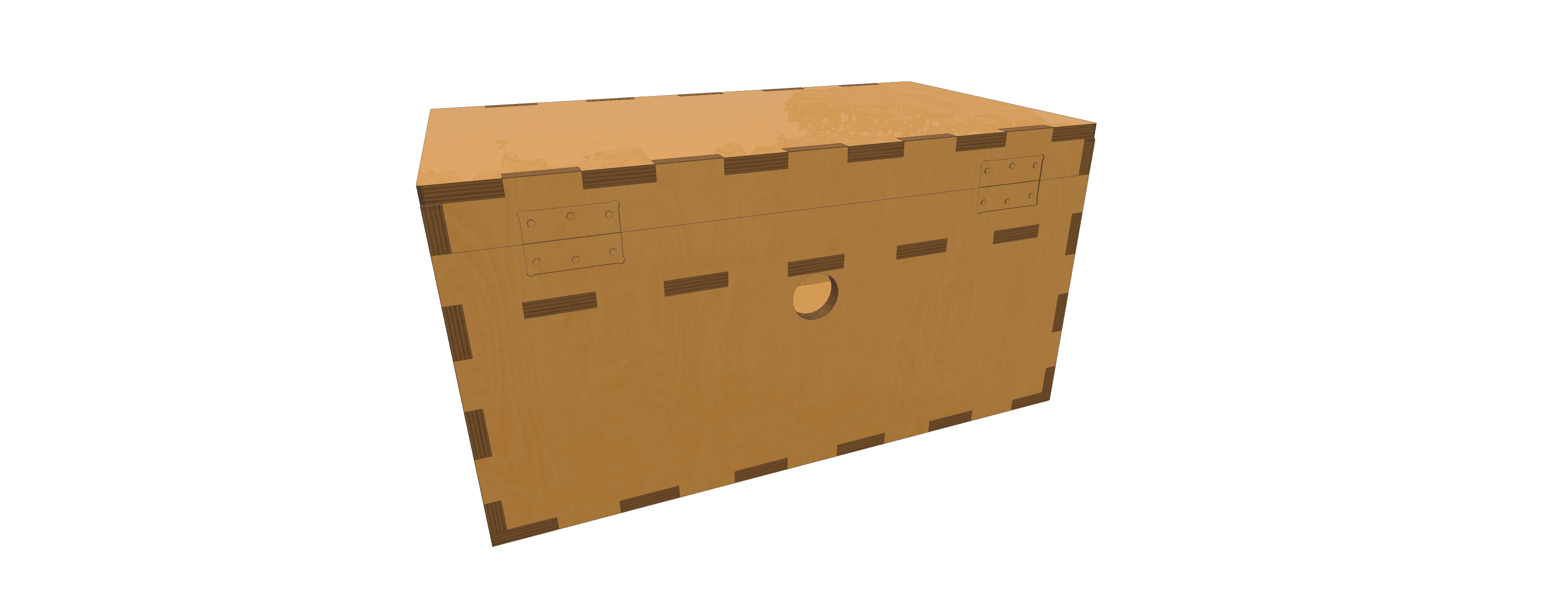
Take a hinge. You have a box in the queue. Five sides, a real lid, and a hinge of a specific size. Unless it is surface mount, or unless you have mad skills with a chisel, you are going to mortise that hinge. In GCrafter, and in CNC vernacular, that mortise is a pocket. The leaf has to sit in the material where it should, and it has to line up with the lower box.
So, yeah, we need to import a DXF.
DXF is not the greatest file format. It often arrives as a group of disconnected paths. We did our best to join all that up. Inches in the file come in at size. A little fiddling and you can get the outline, the drills for the screws, and any other feature you need.
And suddenly you are not worrying about how you are going to add the hinges.
Offset
One of the libraries under GCrafter is Paper.js. I was reworking some of the gremlins in the path tools, clicked a point, and nothing happened. I won't bore you with local-to-global hit testing. It was a super annoying bug.
We tried some workarounds. Then I wondered if there was a newer version. We were a couple of generations back. Usually that is not a big deal. In this line of work you do not immediately jump on the new version, because of the law of unintended consequences.
The new version smashed those click bugs. Consequences? Fingers totally broke. They had "fixed" things. What used to be a move became a scale. Ugh. So I banged through the finger fudge.
It turned out they had finally implemented offsetting and outlining. We already had offsetting. The old way converted vectors to polygons, so the offset of a simple circle, four points, came back as an object with hundreds. Yuck.
The new offset is smarter, faster, cleaner, and more editable. Outline came for free. That is how you turn a simple curved line into a smiley-face cutout.
Booleans. Order matters (sometimes)
In the world of booleans, you have to ask what cuts what. The simple answer is that the shape you select first is the shape the other selected parts cut. Then you window-select, and the order is whatever the window decided. That is frustrating.
Booleans now start with a preview. Pick the operation you want and the preview updates. If it does not look right, press Reverse order and look again. Press Apply when it is the cut you wanted.
The rest of the bench
Joining paths welds ends that are close, not only ends that land on the exact same point. Delete a point on a closed path and the path opens there, instead of bridging the gap.
Snaps hit the stroke and the node. The move tool prefers a point handle when one is under the cursor. The path tool can pick one loop inside a compound path, so a hole or one letter is selectable on its own.
Arrays put each copy where the spacing says, including more than one selected item, and the preview does not leave ghosts behind. Dimension callouts on a shape draw again.
Normal finger joints put a drill in every gap that has room for one.
If you don't have a Pro account, you can try the new features on any of your project in the full demo verison. If you don't have an account, sign up for free.
Happy Making!
Andy