

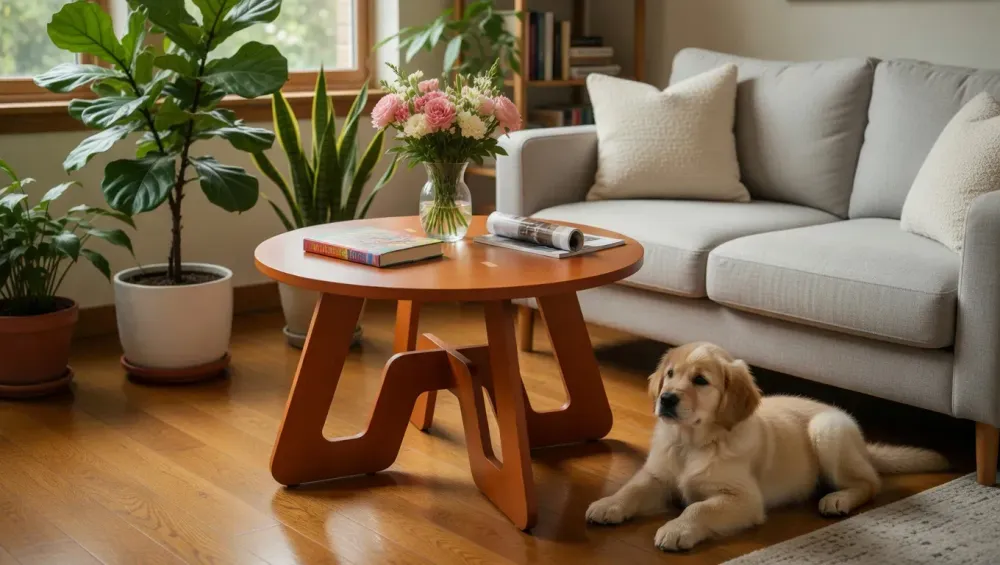
Q2 Updates. And Yes, It's been a Minute
We've been so busy here a GCrafter cranking out new features and fixing bugs, I've been somewhat remiss in not posting. To that end, since our last update…
PhotoStudio
AI image generation right from your project. Sure you could drop a downloaded image, right into your favorite AI tool and generate an image, but the workflow is a bit clunky.
So now you can go easily from this:
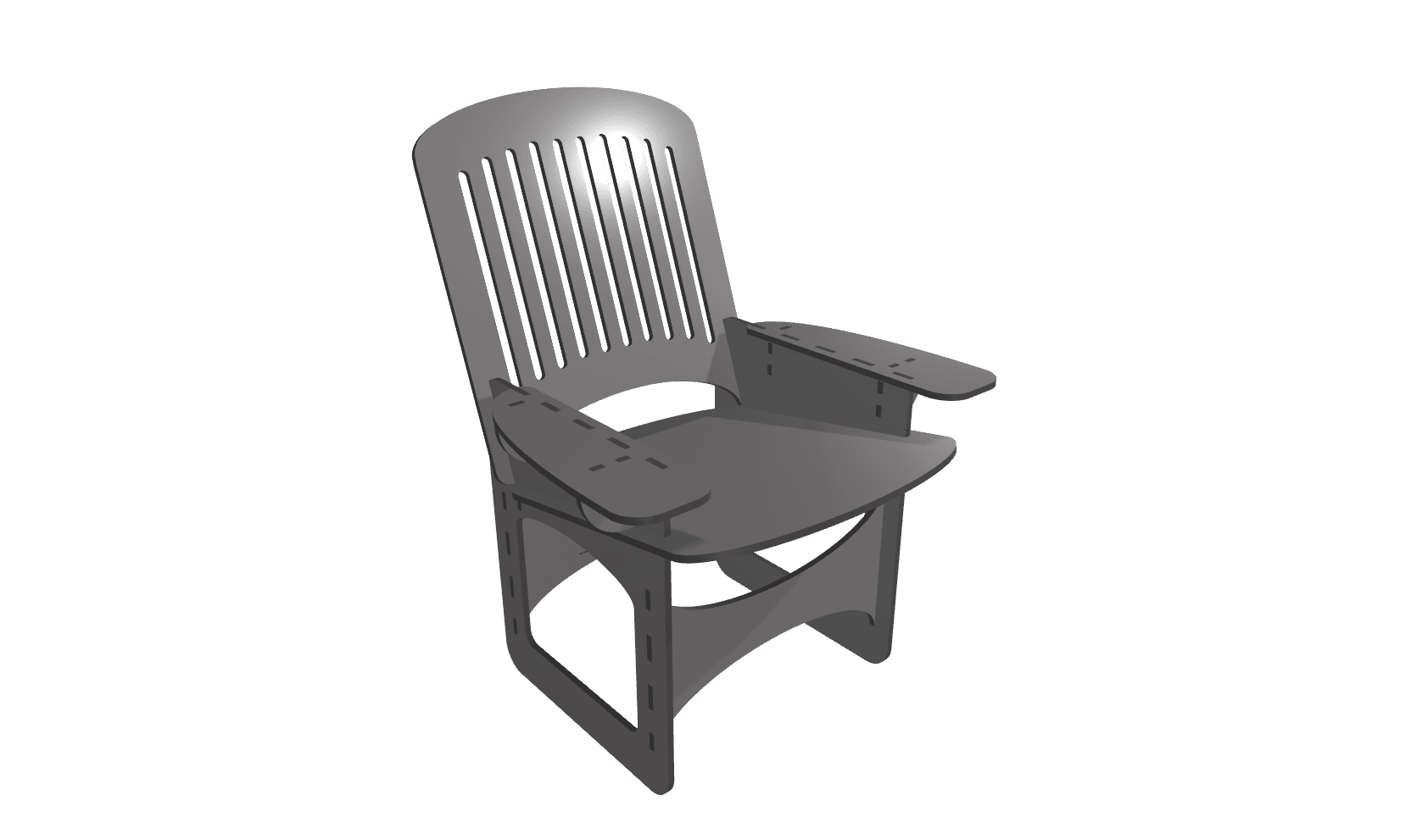
To this
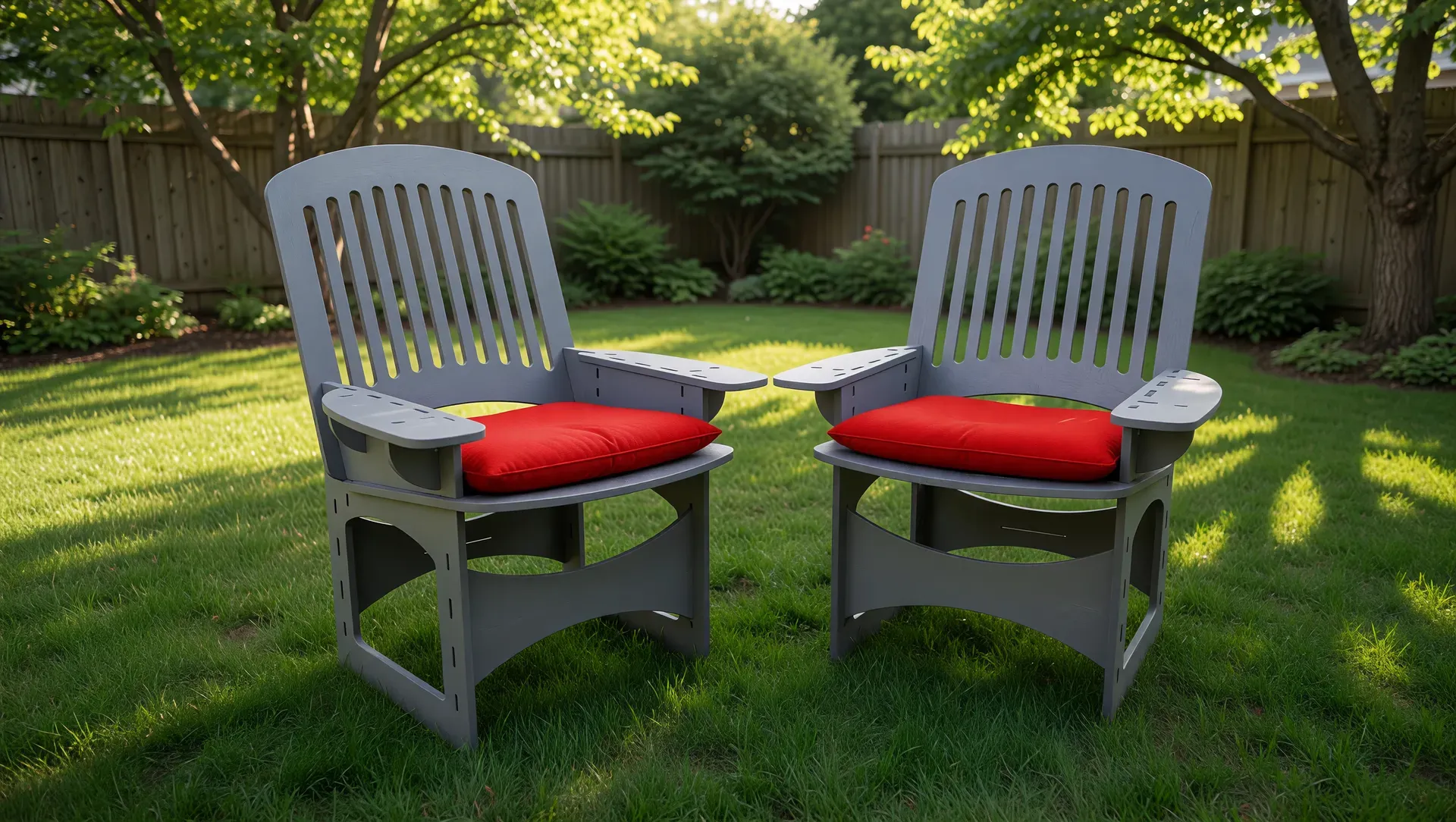
Which would allow you to go right to Etsy, or you fave social channel to bask in the glory of your success.
Face Alignment
Aligning things in 3D in a pain in the A$$. To that end we're always looking for way to make the process easier. So now, with a Part selected, press Control + Shift and selected the face of another part, you can align the XYZ position of the selected part with the XYZ position of the other parts selected face. It takes a little a practice, but with a little patience you've get exact alignments
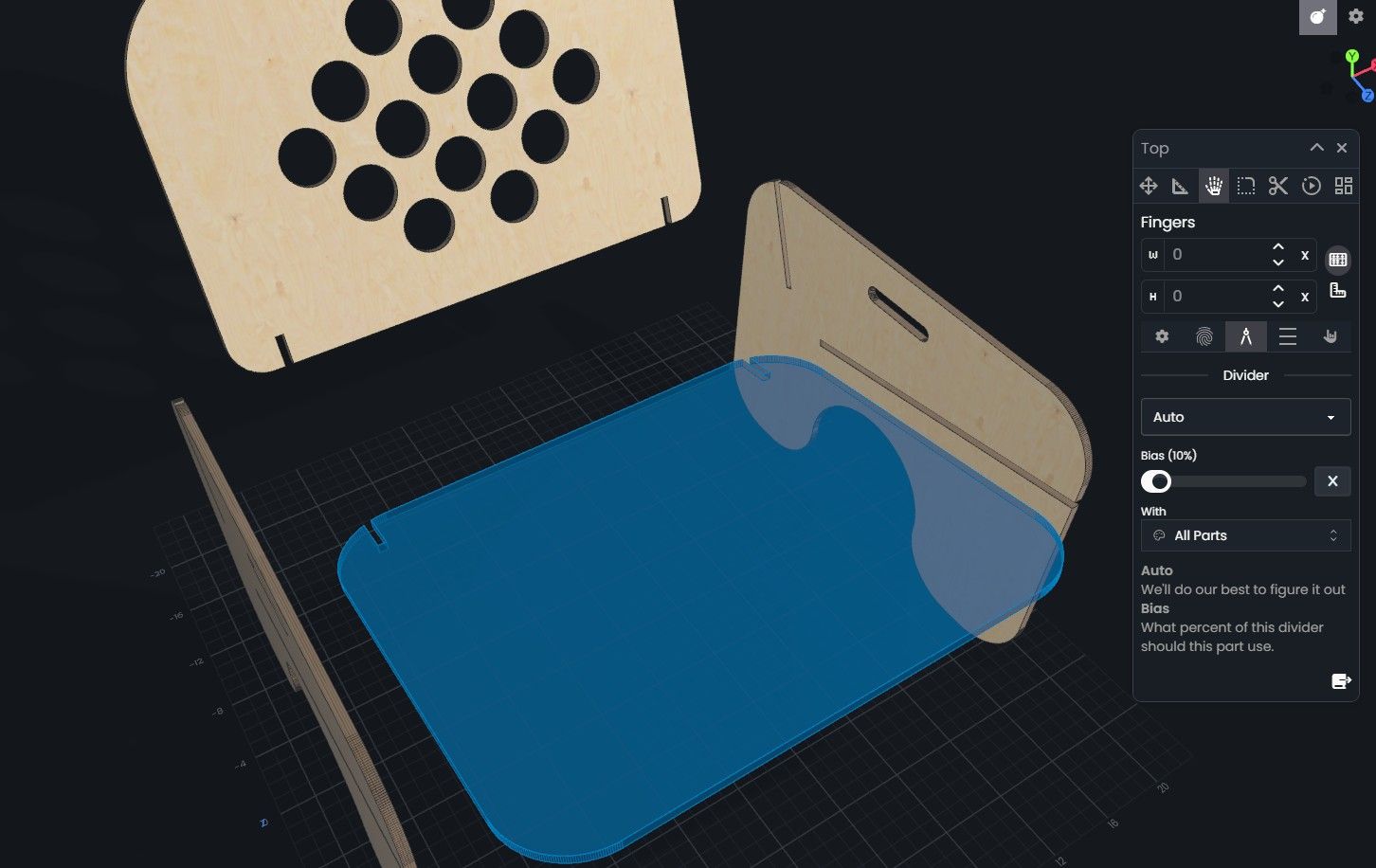
Divider Biasing
When creating a dividers, they by default split the intersection 50/50 between the two parts. In non-load-bearing situations, this is typically fine. But imagine a seat pan in a chair. This probably isn't ideal. In the pic below, you'll see the part seat pan is using 10% of that width, so the divider acts as a small slot for aligning and locking the part in place, while the side have large dividers to carry to load
Totally Retooled Part Packing
Tons of packing options now. You'll see
Improved Shop Tool WorkFlow
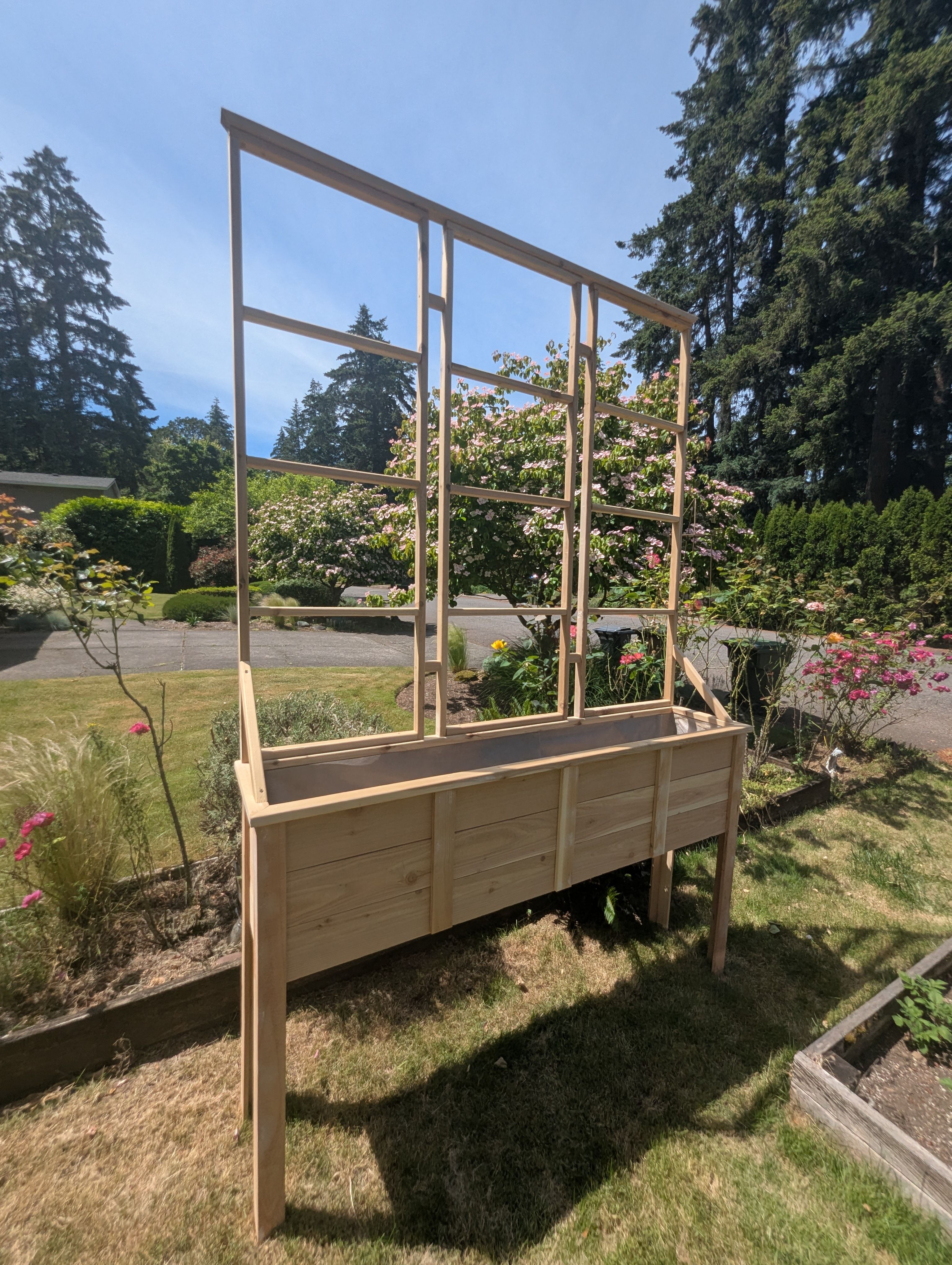
I had a customer ask me to make a monster planter box to go on the side of her house. I totally underqouted the project, but I'd been long looking for a good Shop Tool workflow project to do in GCrafter and this one let me push the limits. An hour of design time, and I emailed this off to the customer (using the recently introduced photo studio). And she loved it.
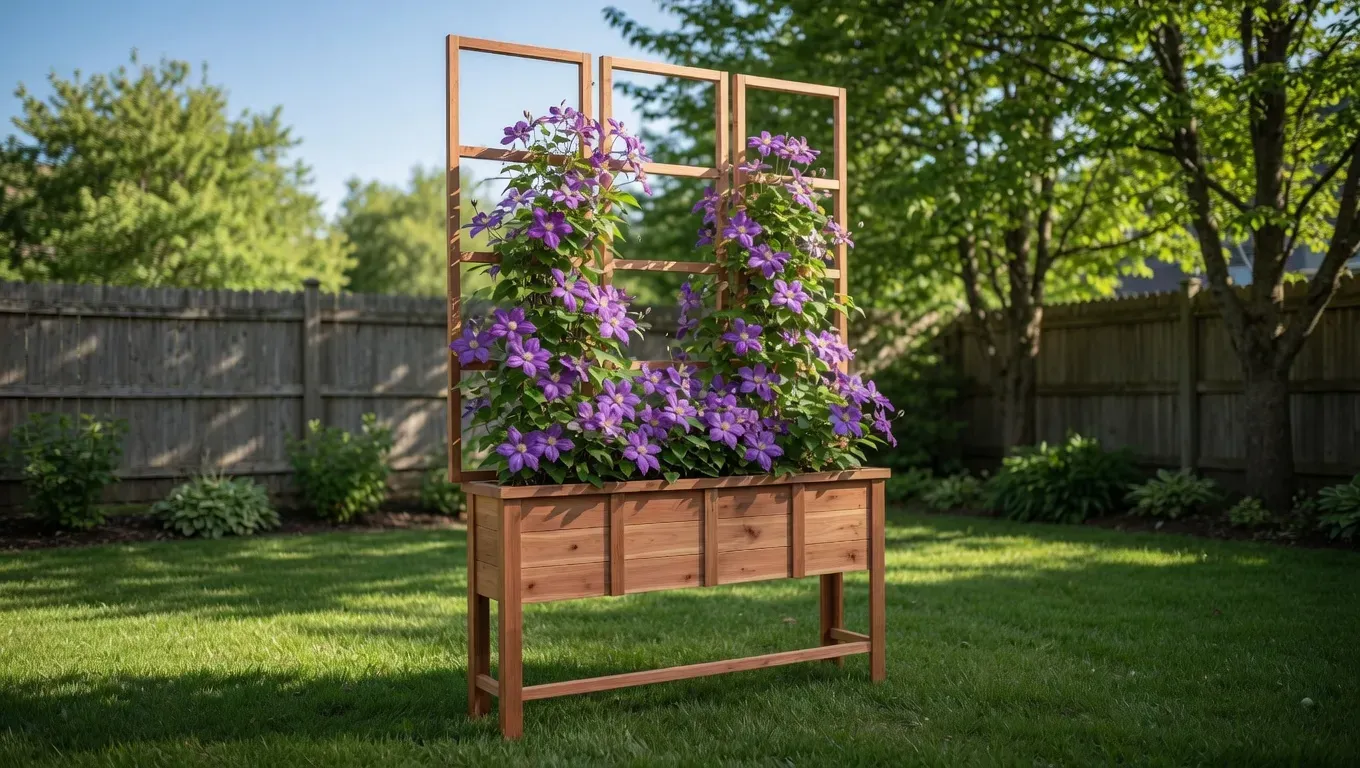
That's when the fun started. Somehow, i had to figure out how to take the SVG ouput, get a PDF, so I could tile print this whole thing and have the tablesaw and mitre saw cuts to put this all together. Printing all this on one 8.5x11 sheet of paper made it unreadble without a magnifying glass.
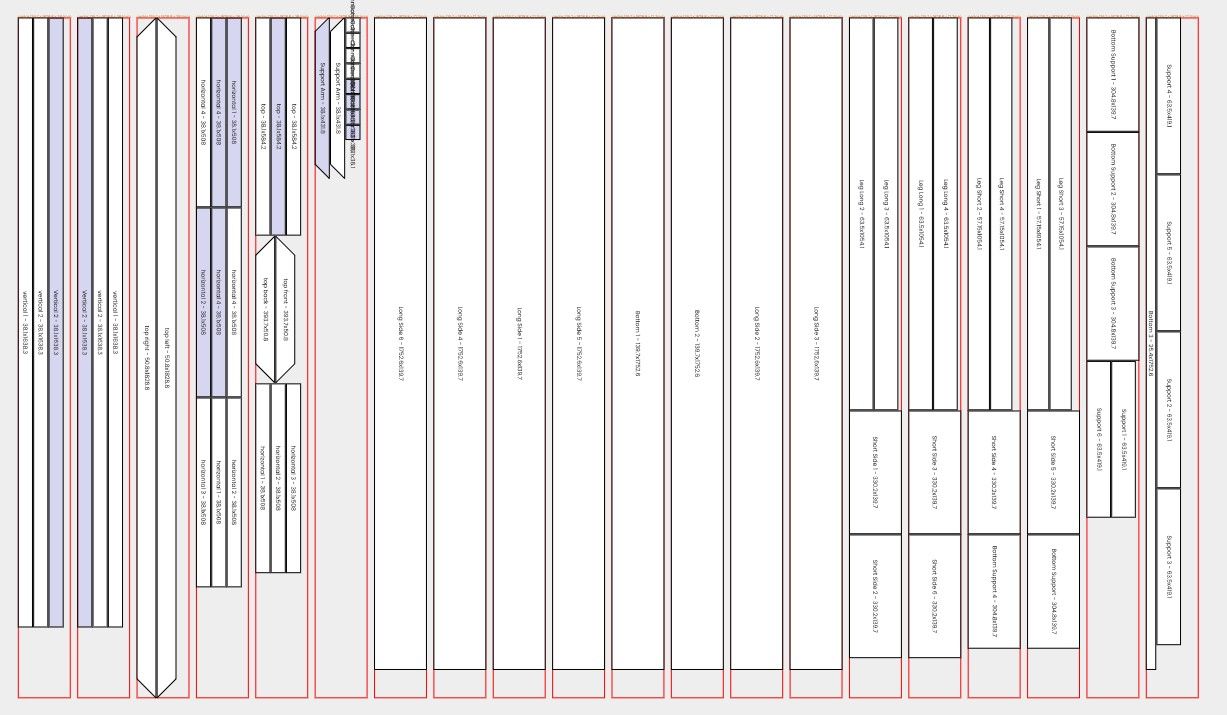
Enter PDF output for GCrafter. Yeah, i know, sounds simple. And it wasnt' too hard. But nothing is ever hard, it just takes time. After having a PDF, i could use the print tiling function of Acrobat reader. One sheet became six, and all taped together, i could read it, and check off what I had cut as a I went.
Along the way, I had to do some retooling of how Layouts were created. When cutting with shop tools, you want as few cuts as possible, it's not like CNC and Laser where it almost doesn't matter what the pack looks like.
Axis Indicators (ie what Freaking Direction Am I Looking At)
This was some seriously low hanging fruit. But a total conceptual game changer. We ditched the view selection, Perspective plus some Ortho view and moved to "Perspective" and "Ortho" views and a small axis indicator in the top right corner of the screen that swivels as the view changes. So now you always know which direction is X+ Z+ Y+ and you click the indicator to spin between views. Ortho view now works that same way. We also added one to PartLab that matches the actual way the part faces in 3D, so at least you know what you're looking at.
Speaking of PartLab
PartLab
Yep. Axis indicator (because Z is forward). Tons of bug fixes, but now you can also turn on a view that shows you all the other parts in a kind of Ortho view, representing the actual face of the part you are working with. This is super helpful for lining things up across multiple parts. Sounds simple, but nothing is simple now that you rotate parts to any angle, because while you want to view the part you are working with at a perpendicular angle, all the other parts are now rotated around it.
We did a comb through on modifier keys, ALT is now contrain angle (45, 90, 135, etc) when drawing and moving and editing paths.
Follow Up, Becuase I Can't Help Myself
If you check the Layout View options, you'll see a new one called "Tool Paths". This is just a glimpse into where we are going. Full GCode ouput. CAM Software frankly sucks. It takes way too much time to do simple things, and if your design changes, you have to start all over again. Think like this. Design, export the SVG/DXF import to vectric, carveco, easel, Carbide Create, LightBurn. Create all your toolpaths, tabs, pockets, offset, stock to leave. Decide you missed something. Export to SVG/DXF and do it all over again. F@$K. Imagine your design spans 8 sheets. Double F@$K. I've had it. We're going full GCODE. We'll be offering this at a reasonable upgrade from our pro plan, pricing to come. With all that being said, I want it to be falling off a log easy. Design box (or whatever). Choose tools. Auto create tabs, auto pocket pockets, auto vcarve fancy shapes. We'll keep you posted.
Pushing the Boat Out
This has been on seriously long year of coding. GCrafter will never be perfect. But it's go time. We'll always be improving, fixing, tweaking. But dammit, it's good. And we're going to downshift into marketing and making how to videos. Help us spread the word?
That's just about enough for a Saturday afternoon.
Happy Making,
Andy